SendToQuickBase Cloud Feature
The SendToQuickBase cloud feature lets you easily save your email messages into your Quickbase Application without installing any software, preserving it in the cloud for access anywhere you're online. This feature is made possible given that saving into Quickbase simply requires that you include a special email address on your outgoing email messages (either in the To, Cc, or preferable the Bcc), or forward incoming messages to that email address.
Given this approach, SendToQuickBase can be used with any email program on any computer, running any operating system -- including smartphones and handheld devices. For example:
- New Outlook
- Outlook on a Mac
- Apple Mail
- Gmail
- Yahoo! Mail
- Android Phone
- iPhone
- iPad
... any email program at all!
How to Save Emails Using Cloud Feature
Your SendToQuickBase Administrator specifies your special @SendToQuickBase.com email address when they create the "Mapping" that defines where information is stored in Quickbase. For example, the Admin may specify , or any other variation they see fit.
Contact your SendToQuickBase Administrator to obtain the correct email address and begin saving with our cloud feature!
Must be on SendToQuickBase License
Before you can use save emails using SendToQuickBase, your SendToQuickBase Administrator must add you to your organization's SendToQuickBase License.
One-Time Setup: Setting Your Password
Once you have been added to your organization's SendToQuickBase License, there is a one-time setup needed before you can save emails using this approach. You must set your Quickbase password as follows:
- In your browser, log into Quickbase if you are not already.
- Open the Quickbase app SoftTechExperts Product Licenses and click the view (eye) icon to open it.
The app is located at
https://XXXXXX.quickbase.com/db/bdz674kud
where XXXXXX should be replaced with your Quickbase Account. For example:
https://acme.quickbase.com/db/bdz674kud
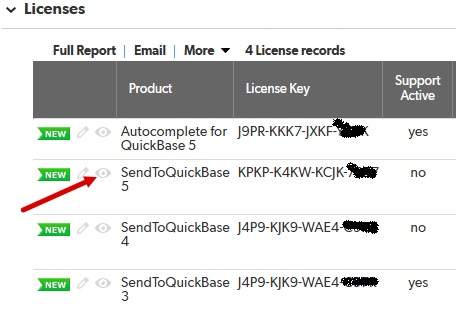
- On the page that opens, locate your User record, and click the edit (pencil) icon. If you cannot locate your User record, ask your SendToQuickBase Administrator to add you to the License.
- On the User page, click "Set Password". Note that you must allow pop-up windows from quickbase.com.
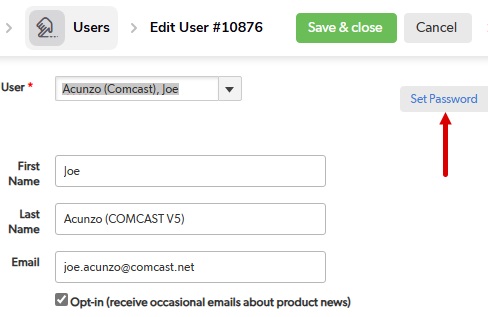
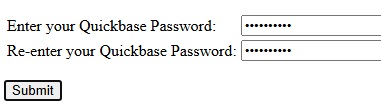
- On the password page, enter your Quickbase password twice, and click "Submit".
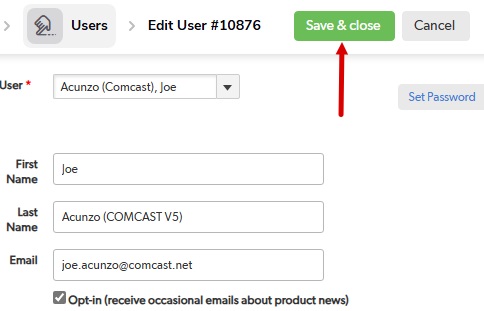
- Back on the User record page, click "Save & close".
That completes the setup, however, if you change your Quickbase password, you must go through this procedure again.
Saving Sent Messages
To save an outgoing email you are sending, simply include the special email address in your Bcc.
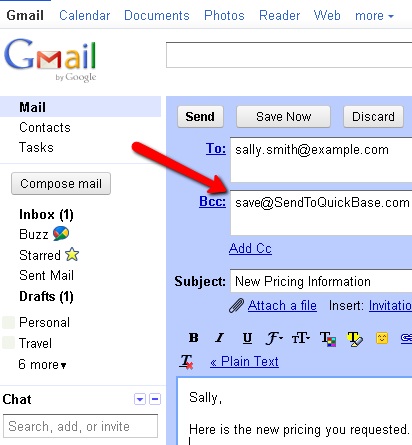
While putting the email address in the To or Cc will save the message into Quickbase, if the recipient does a Reply All, an attempt will be made to save the message into Quickbase. However, since the message won't be coming from you, it will fail to save.
Saving Received Messages
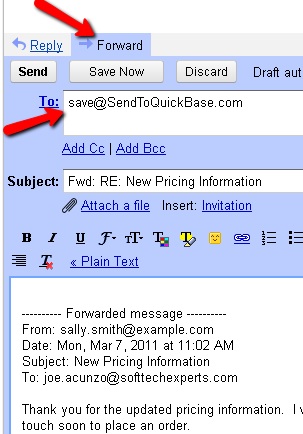
To save an email you have received, simply forward that message to the special email address. Do not include any other email addresses on the forwarded message, just send it "To" the special email address.